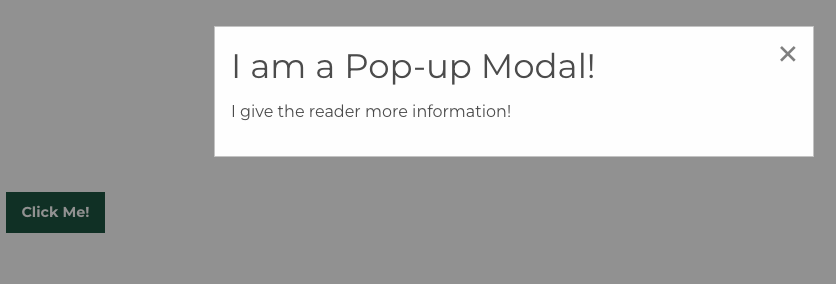
1. Insert the UTHSC Modal block
- Edit the page or post where you want the callout block.
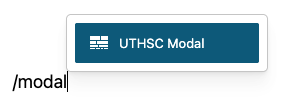
- In the search field, type /modal or /uthsc to filter blocks.
- Select the UTHSC Modal block from the results.
2. Add Your Content to Modal
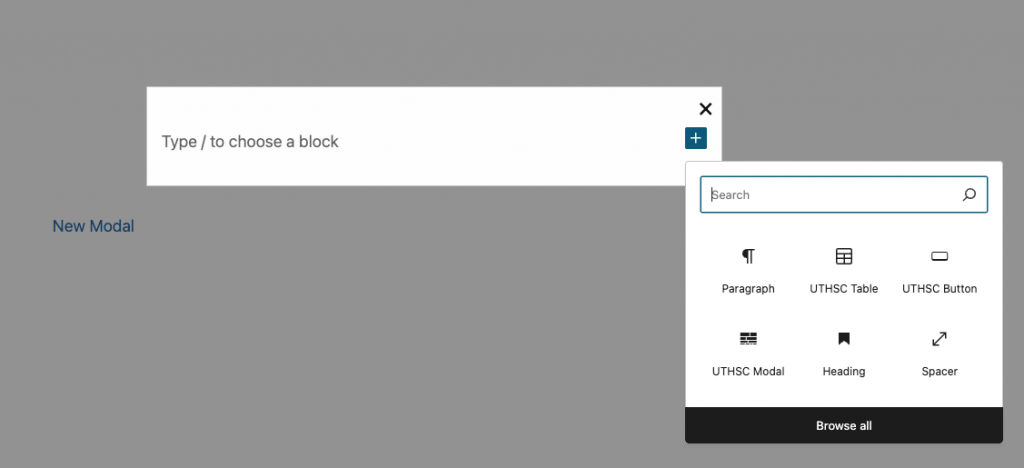
After selecting the UTHSC Modal, you can add your content as needed using any UTHSC or WordPress block. That includes text, images, accordion/tabs, and buttons.
3. Add a Modal Label
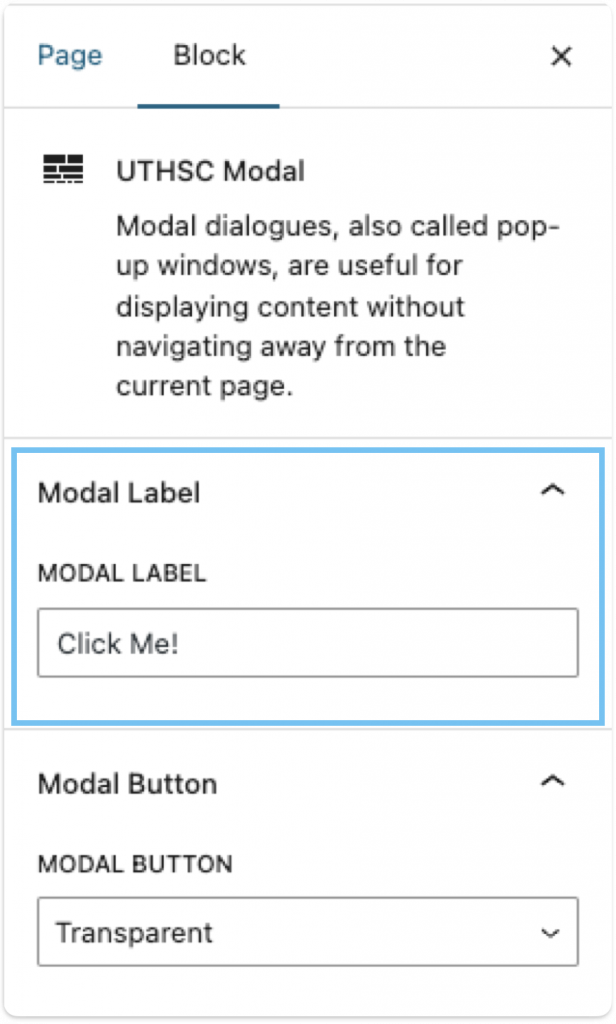
After adding you content to your modal, head to the right-side panel under the “Block” tab and edit your modal label. This will be the text that shows on the front end before the user triggers the modal.
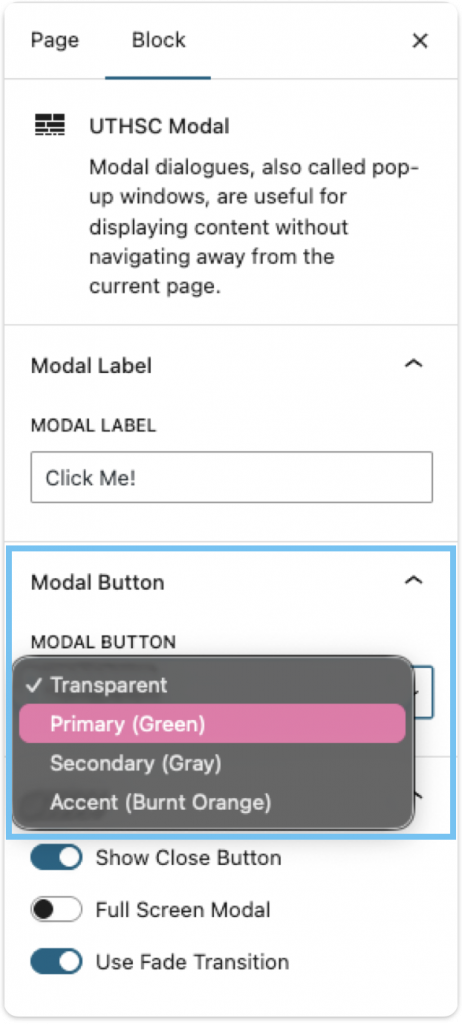
4. Edit Modal Button’s Color
Users can adjust the color of the modal button that will show on the front end.
Colors
- Transparent (Default)
- Green
- Gray
- Burnt Orange
5. Additional Options
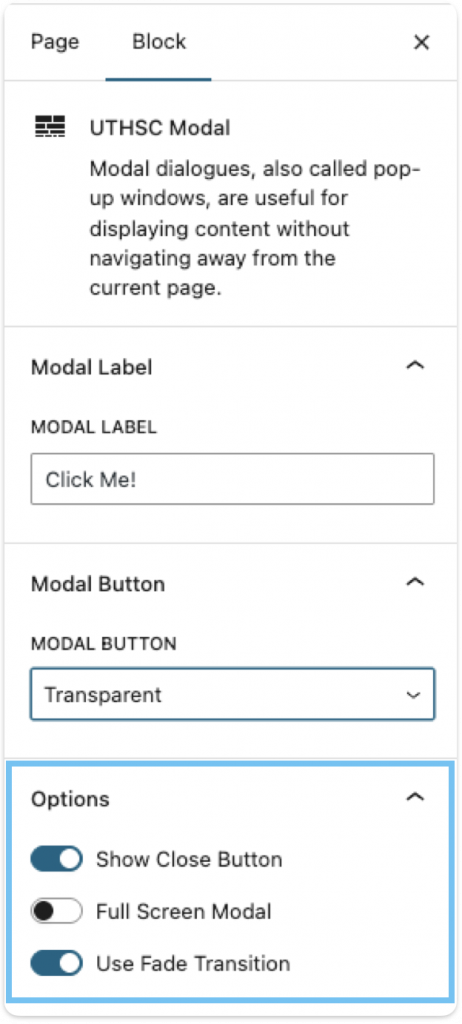
Users can toggle different functionalities for the modal block on and off:
- Show Close Button
- (“X” in the top right corner)
- Full Screen Modal
- When visitor clicks modal button, the modal pop-up item will take over the entire screen.
- Use Fade Transition
- Allow fading animations
6. Save and Publish
After styling the modal with your content added, save or publish, and you’re done!