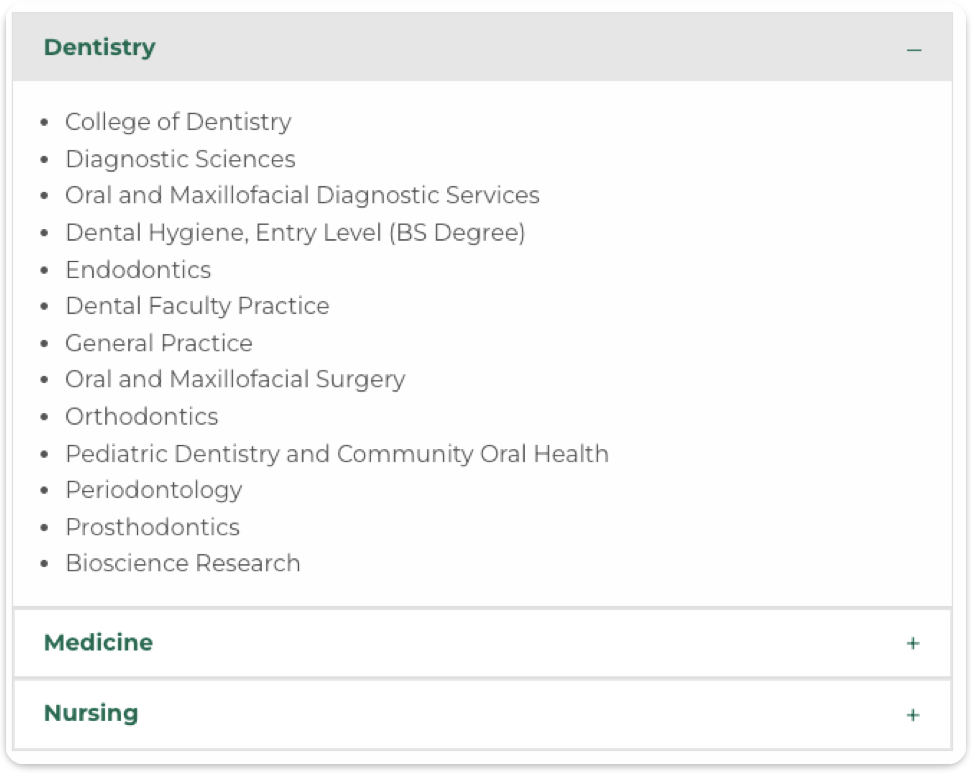
Below is a quick demonstration on how to use the accordion/tabs block:
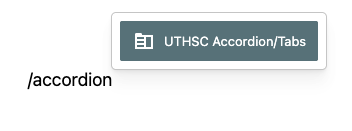
1. Insert the UTHSC Accordion/Tabs block
- Edit the page or post where you want the accordion/tab.
- In the search field, type /accordion, /tab, or /uthsc to filter blocks.
- Select the UTHSC Accordion/Tabs block from the results.
2. Select Device Size
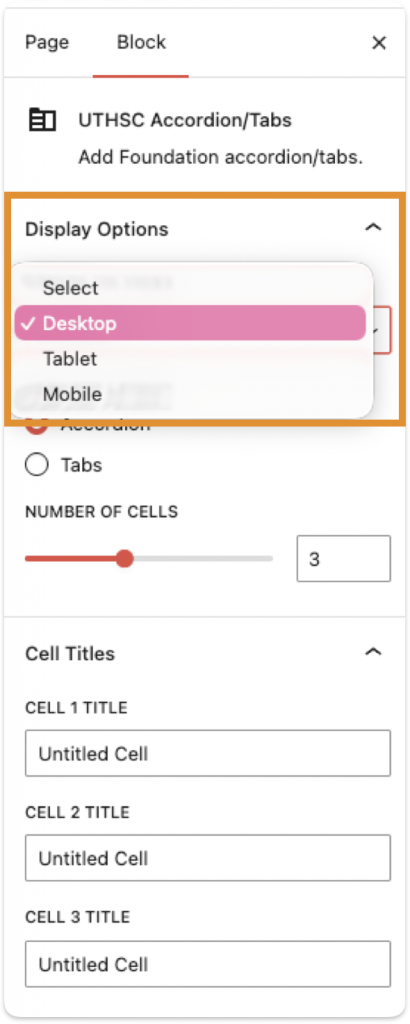
In the menu on the right side, there are three device sizes to choose from. Choose the one that best suites your design.
- Desktop:
- Accordion
- Tabs
- Tablet:
- Accordion
- Tabs
- Mobile:
- Accordion only
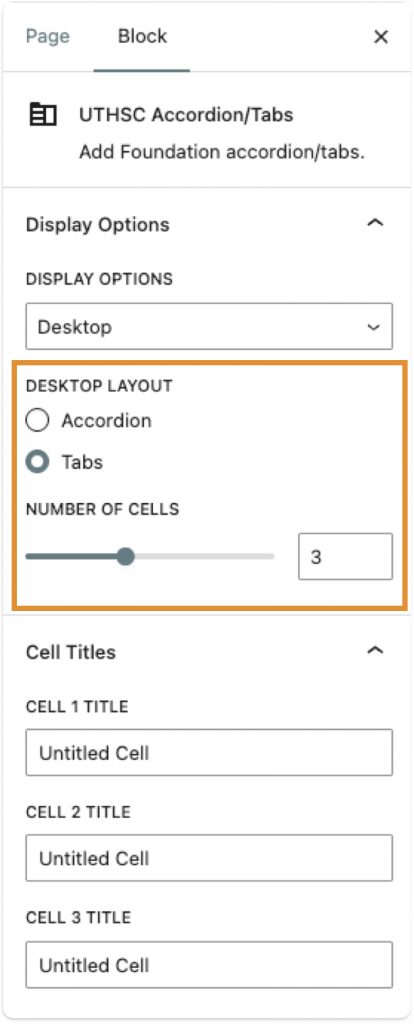
3. Choose Your Layout and Number of Cells
After selecting the device display size, you can choose between accordion and tabs (mobile will always be an accordion) and the number of cells needed for your content.
4. Adjust the Cell Titles
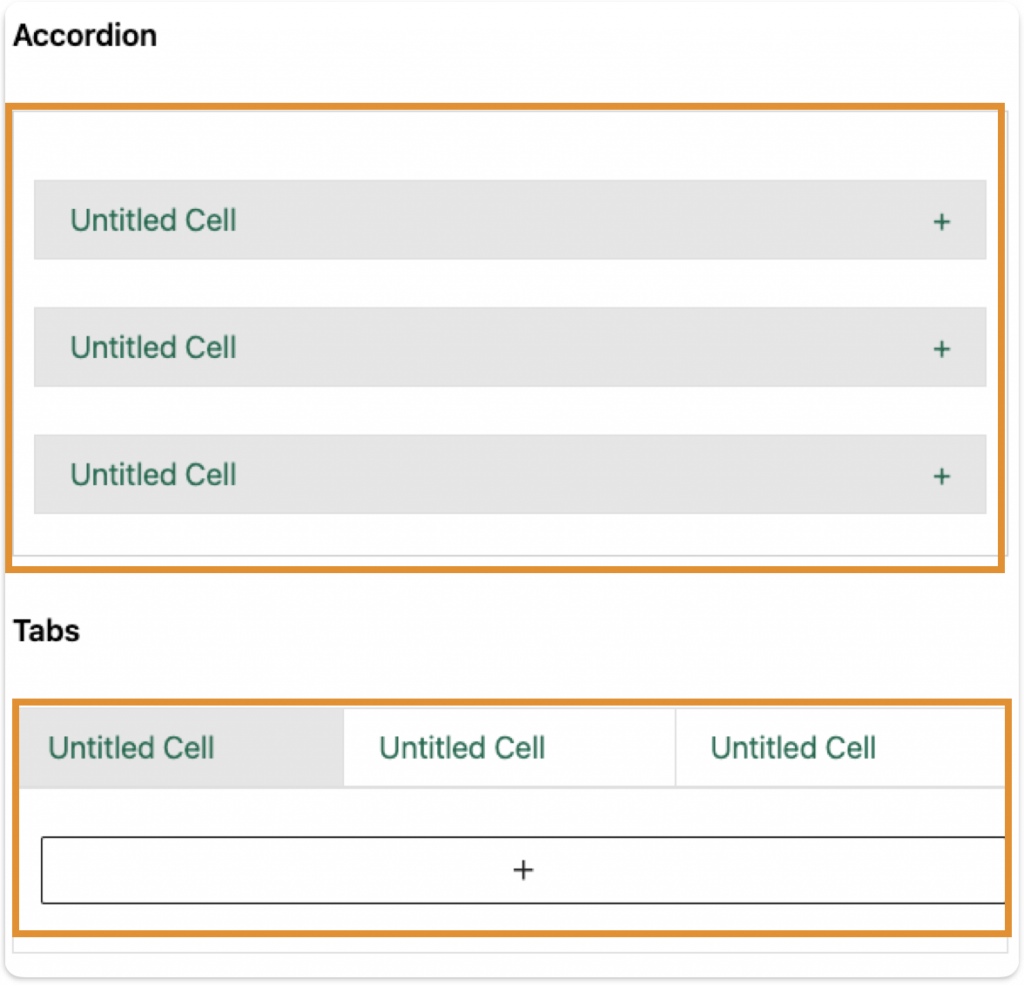
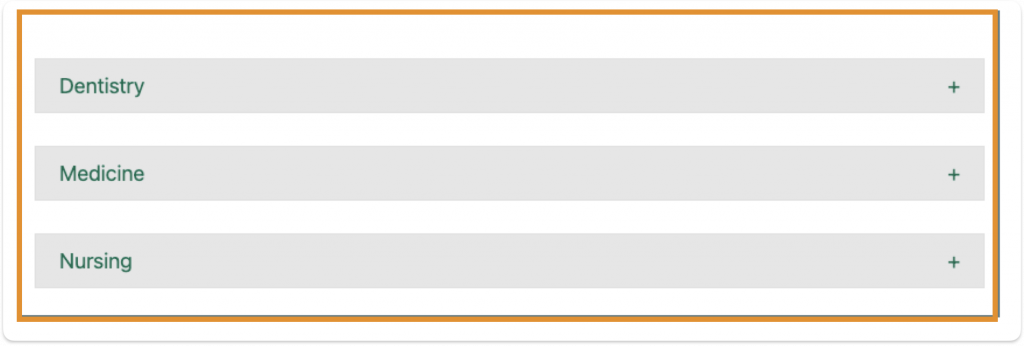
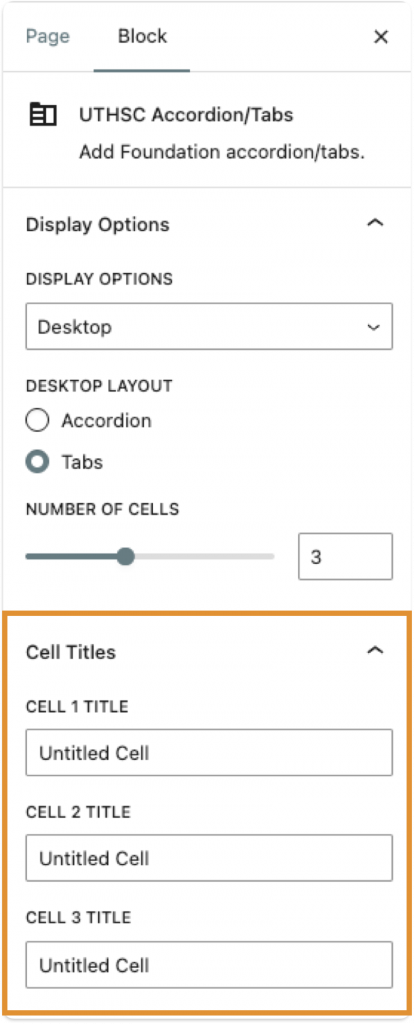
Click within the border on the white background to bring up right panel if it has been lost. That selects the block. From there, you can adjust titles as needed.
5. Add Your Content
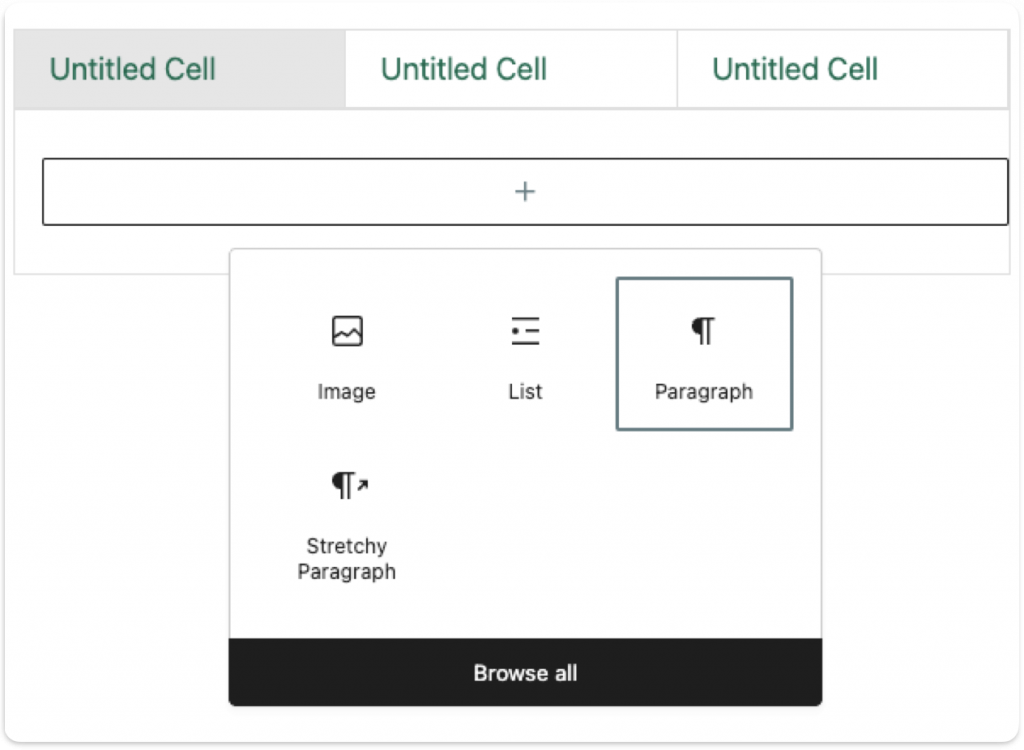
There are many blocks you can use to display your content. Use what works best for your use case.
6. Save and Publish
After styling the accordion/tabs the way you want, save or publish, and you’re done!